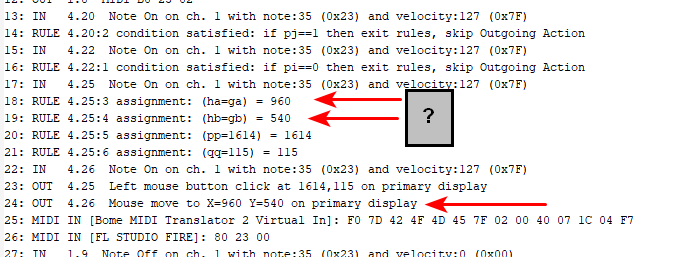
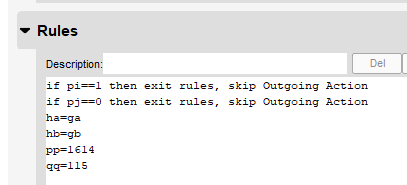
Stop processing only happens on a given translator if the outgoing action is executed. If the outgoing action is not executed, rules still process and there is no stop processing.
Steve Caldwell
Bome Customer Care
Also available for paid consulting services: bome@sniz.biz
Oh, I didn’t even bother to look at rules.
If I run into problems, then I will revisit the offending translators and see if that is the case, thank you.
Actually I can’t figure out this MIDI Buddy problem. MTP is returning the mouse to predetermined locations instead of the last known cursor position. Something has made the ha and hb variables a certain number and they won’t change. Every one of these mouse click and return sequences uses those variables.
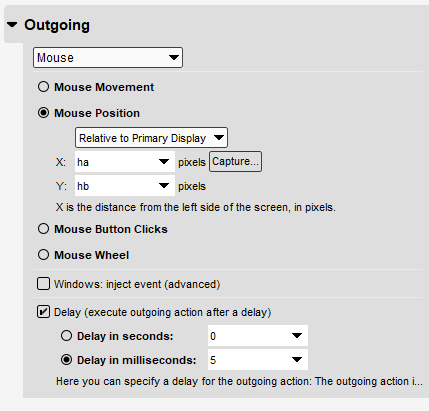
This is the first translator that captures the mouse position and tells the mouse to click somewhere.
This is the return translator that tells the mouse to return to that position.
For some reason ha and hb are stuck with fixed coordinates.
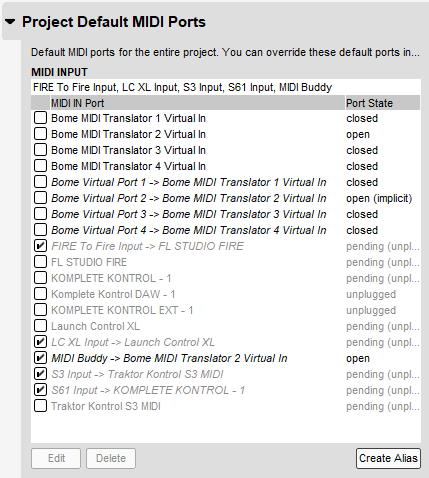
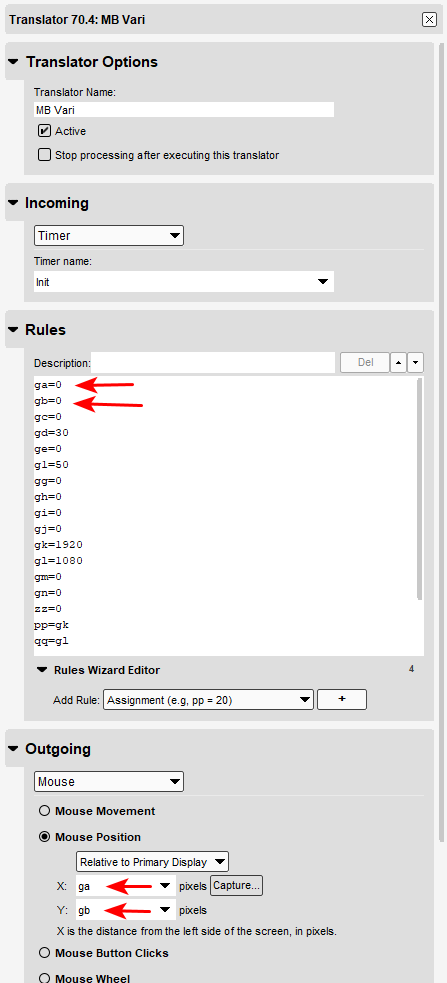
Do you have your MIDIBuddy incoming port set as BMT2? That is where it looks like mouse position commands are coming in? Check settings in MIDI Buddy for incoming MIDI and also for MT Pro to make sure they match. You should be able to monitor rule “ga=” or “gb=” in the filter of your log window to see if they are properly changing as you move the mouse.
Steve Caldwell
Bome Customer Care
Also available for paid consulting services: bome@sniz.biz
Sorry, this is probably something simple that I’m just not seeing.
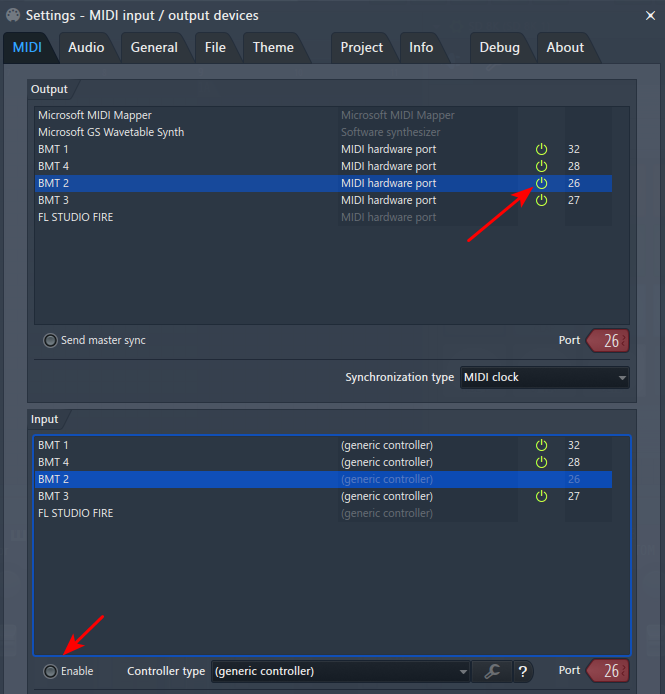
I have the project level input ports set like this:
The preset level ports are sometimes different, but I tried enabling the MIDI Buddy alias on the active preset, but that didn’t do it.
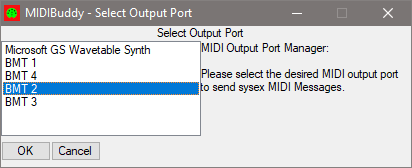
MB is set to BMT 2 now. It was sitting on BMT 3 when I checked. Changed to 2 but that didn’t do it.
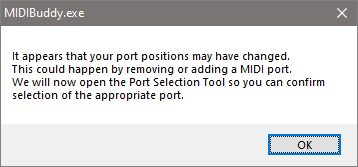
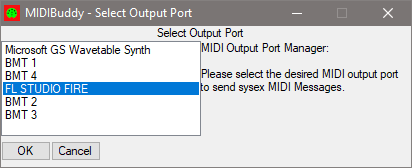
Oddly when I have the Akai Fire device running, that’s when it prompts me that the ports have changed. The Fire is what seems to be stealing the port; I thought it was FL Studio.
In the FLS settings the BMT 2 input port is disabled, but FLS keeps opening the output port every time I disable it. I can’t make FLS forget or disregard any ports. I’ve requested that function in the past.
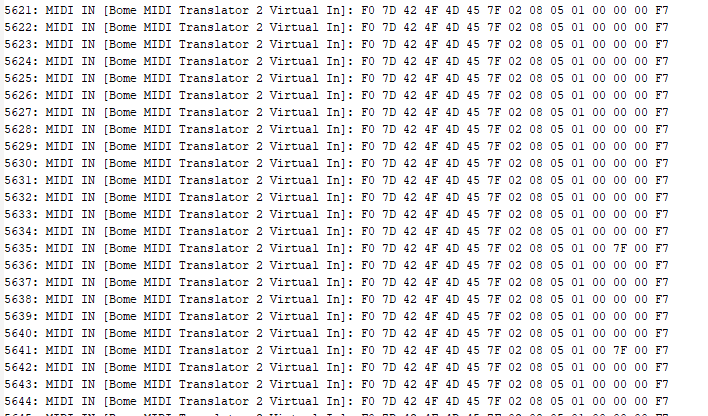
The only log window filter that gives me any activity is the ‘MIDI IN’ one. It gives me raw data; don’t know what to make of it. I got five thousand entries in a matter of seconds.
As a side note, oddly MTP is sticking to the front layer of my screen too. It doesn’t work with Alt + Tab, or even my screen capture software that always loads a snipped pic to the front of the active programs. I have to minimize MTP with the top right button to swap to another program. This isn’t the standard behavior.
Any time you add or remove a MIDI controller you will get this message from MIDIBuddy about port change. Simply re-select the correct port and it you should be back on your way.
If you remove the port number (set it to blank) then it will not try to open the port.
These are mouse relative movement messages from MDIBuddy. Most of the time you can just ignore these messages and just use absolute positioning messages. The format of these messages is shown in the MIDIBuddy Readme file under the heading ‘Mouse Actions (Unique for each attached mouse)’.
Holding the Special Key (Alt by default) down, with MIDI Buddy will disable absolute mouse movement , scroll wheel and click actions You can change this special key to something else if you don’t want to use Alt.
Here is an excerpt from the MIDI Buddy Readme file
<Special> Key
-------------
Alt(Default) will still send MIDI message but suppress normal mouse button/wheel
activity. Does not suppress mouse movement (see Ctnl-Alt-F  below). You can
change the <Special> Key in MIDIBuddy settings to be Alt Left Windows, Caps Lock, Cntl or Shift.
There are certain key combinations you should probably stay away from as MIDIBuddy uses them. These are all called out in the MIDIBuddy README File. Some of these keys may interrupt normal windows operations, especially Cntl-Alt-F.
Special Key - As described above
Cntl-Alt-D - Change Delay
Cntl-Alt-F - Freeze mouse movement
Cntl-Alt-P - Pause Mouse position messages (Toggle)
Cntl-Alt-Q - Quit MIDIBuddy
Cntl-Alt-R - Reverse the Special Key Action
Cntl-Alt-U= Unfreeze mouse movement
In order to see what is actually happening in your project file. I would probably need to see it.
Here is a copy of the current MIDIBuddy Readme file.
Also, keep in mind. Mouse position only works on your primary monitor.
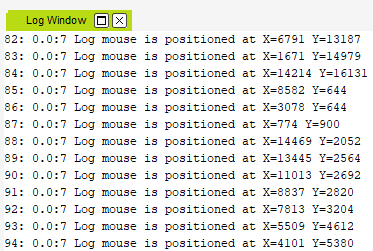
Finally, you can test if MIDIBuddy mouse position and click messages are working with the below project file. Just filter on “Log” in the MT Pro Log window and move or click your mouse. You must select the proper input port for your MIDIBuddy alias.
Ok, the log tells me mouse movements are working. I put that preset in my project too and is also working. The x and y coordinates are strange, but still works.
Mouse clicks and mouse wheel doesn’t log if “suspend hotkeys” is enabled on MB. But then the mouse click macroes don’t work; they never click on the target. The return also doesn’t work if hotkeys aren’t suspended; it’s a consistent return location, just a different location. So I have to have hotkeys suspended. Also the spacebar won’t work if hotkeys are not suspended.
Took some time trying out all the hotkeys for a while and toggling on/off different ports. Nothing changed. If I disable the MTP 2 ports and aliases, the behavior actually doesn’t change. But the log does stop getting mouse messages. So this tells me with my mouse click sequences, MB isn’t being involved at all right now.
I mentioned it was returning the mouse to a different consistent location. Now every return translator is sending to that new location, instead of the old one before I tried all these tests. I restarted the project and now it’s back to the old position.
I have the special key set to nothing and the mouse move delay at 100 right now. Changing that delay doesn’t seem to do anything.
(Project File Removed)
The Main presets are at the bottom. So when there are stop flags it won’t read those presets at all.
Whenever you see “GMC” that’s the beginning of a mouse click sequence (Get Mouse and Click)
Then “RN” is (Return).
MIDI Buddy will not work if you suspend hotkeys. Your are essentially disabling MIDI Buddy from most operations.
There must be something wrong in the project file. I hope you kept a backup of the last working configuration.
I’ll take a look at your project file but with all of the stopping of future outgoing actions, you probably broke something. I usually don’t do that except for extreme cases.
Steve Caldwell
Bome Customer Care
Also available for paid consulting services: bome@sniz.biz
Wow,
Did you document your global variable anywhere? I can se where you set them in 70.3 but it doesn’t say what they do. Right now I was just trying to test 4.25 but it doesn’t work because pj=0 and I’m not sure whay you use pj for as it is not documented. I don’t think I’m in a position to fix your whole script since you have done so much to it. I would recommend going back to the last stable version and then focusing on one or two translators that don’t work as you expect. Remember stop process will disable any further translators done the line (if they execute an outgoing action or the outgoing action is set to none).
Steve Caldwell
Bome Customer Care
Also available for paid consulting services: bome@sniz.biz
Hi, disabling stop processing on several translators before 4.26 with the same incoming triggerstrong text plus commenting out the below rule made the translator behave as expected.
//if pj==0 then exit rules, skip Outgoing Action
TJ MB Project-sjc-2023-01-16.bmtp - Removed - Please contact author for the project file
Steve Caldwell
Bome Customer Care
Also available for paid consulting services: bome@sniz.biz
Looking back I definitely should have kept a variables document.
Wish MTP had a variables manager. That shows which variables are in what translators, their current value and what variables are free to use.
The pi and pj variables are my Shift and Alt flags. I hold down Shift and it’s pi=1. Let go and it’s pi=0.
So any translators that have the if pi = 0 then skip outgoing action, that’s because the button can be used with shift. And pj for Alt.
Went through my whole project looking for ha hb ga gb. They are only found in the mouse click rules and nowhere else.
The ha=ga hb=gb.
Otherwise it’s all found in the INIT preset.
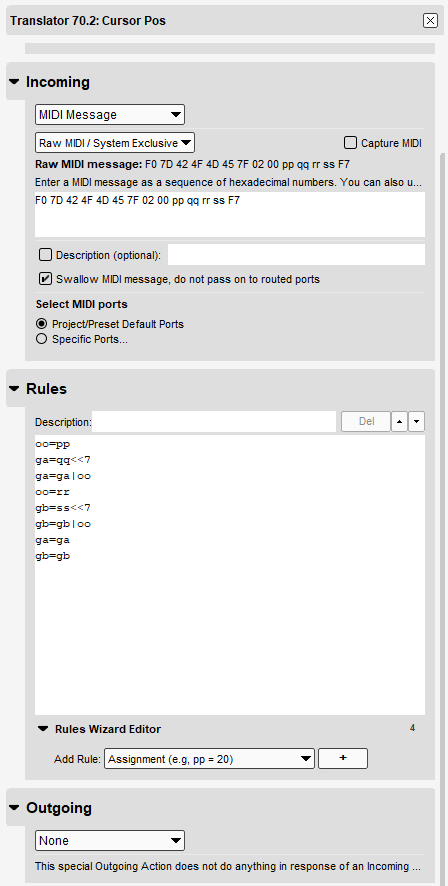
70.2 Cursor Pos mentions these variables a bunch of times.
You’re probably right about the stop flags. I think the only differences in these past seven months has been a new version of FL Studio and me adding stop flags.
My only backup is so old that I’m better off fixing this.
I took off all the stop flags before the one you mentioned, 4.26.
The first time it clicked on the target then sent the mouse to the top left. x 0 y 0.
Then on the second attempt, it clicked on the target then it went back to the same position as before. I was able to capture the location with mofiki’s coordinate finder.
It goes to x 960 y 540 every time. But I don’t see where those coordinates are in my project.
If I use the same mouse click translators from other places, say my keyboard for example, it goes to the exact same location.
The coordinates that you return to will be the mouse position your mouse is at when you pushed but button. You will not find them in your project file as they are derived from the actual mouse position.
I have a script that will capture many of the global variables and where they are used. It does not capture globals in the range starting with o through x as these were global variables added after I created the script. It is not foolproof but should help.
Somewhere along the line you got rid of the mouse positioning commands from MIDI Buddy for ga and gb back into MT Pro. This is essential for tracking MIDIBuddy mouse position. I added them back into translator 73.0
I also changed the delay for return to 1 second so you could have more time to watch it.
TJ MB Project-sjc-2023-01-16a.bmtp Removed. Please contact author for the project file
Steve Caldwell
Bome Customer Care
Also available for paid consulting services: bome@sniz.biz
My fix I described was a workaround. The root cause I believe was that you disabled preset Init (69.1) after 4 seconds and there are translators within that preset that monitor MIDI buddy mouse movements. Without the preset enabled, you were not receiving updates to global variables ga and gb.
Steve Caldwell
Bome Customer Care
Also available for paid consulting services: bome@sniz.biz
Oh I see. I’ll just not disable it then. Thought it was just for initializing, not that it was needed continually.
The disabling of presets is for when they are not needed, for processing overhead.
Ok. I reverted to my previous project. Cut out all the variable translators from INIT and put them into the iCue preset at the top. Works like a charm. Thanks.