BomeBox as a the brains of a midi loop switcher

Hi, I’m looking at using the BomeBox as the heart of my guitar rig to control the analogue loop switchers.

The controller device would be an AKAI APC mini Mk 2 or similar.

The switchers are the DOREMiDi MIDI Effects Switcher (MES-8). 3 of them so far.

I need not only to turn one or more loop switches on, but also turn the balance of the loops off because the state of the switchers is not known by the controller. So multiple (24) MIDI events must be sent for each button push on the controller.

What is the best way to approach this?

Is the Perform function the best way, or do I have multiple outgoing actions for the same incoming action as described in the Bome MIDI Translator Pro USER MANUAL software manual on pages 104-105?

The latter method could result in very large project files, with 64 buttons / midi events each activating 24 outgoing (switch) events.

What’s the best way to approach this?

Thank you, Jon

Hi and welcome to the Bome community!

First of all, in order to use your BomeBox for translation, you will need to purchase Bome MIDI Translator Pro if you haven’t already. Then you develop your project on your computer and upload it to your BomeBox for execution. Projects created with the trial version of Bome MIDI Translator Pro will not work on your BomeBox.

Now for me, I’m a fan of using perform. That way I can easily separate the incoming MIDI trigger from the outgoing MIDI message making the project more flexible if I want to change controllers.

Even though your MES-8 does not send status back, since the MIDI you send it will be the only way to control it, you should be able to use a global variable to bitmap the current state of all of your loops. For 3 units times 8 loops that means a single global variable could use 24 bits of the 32 bits available to track the state of each loop.

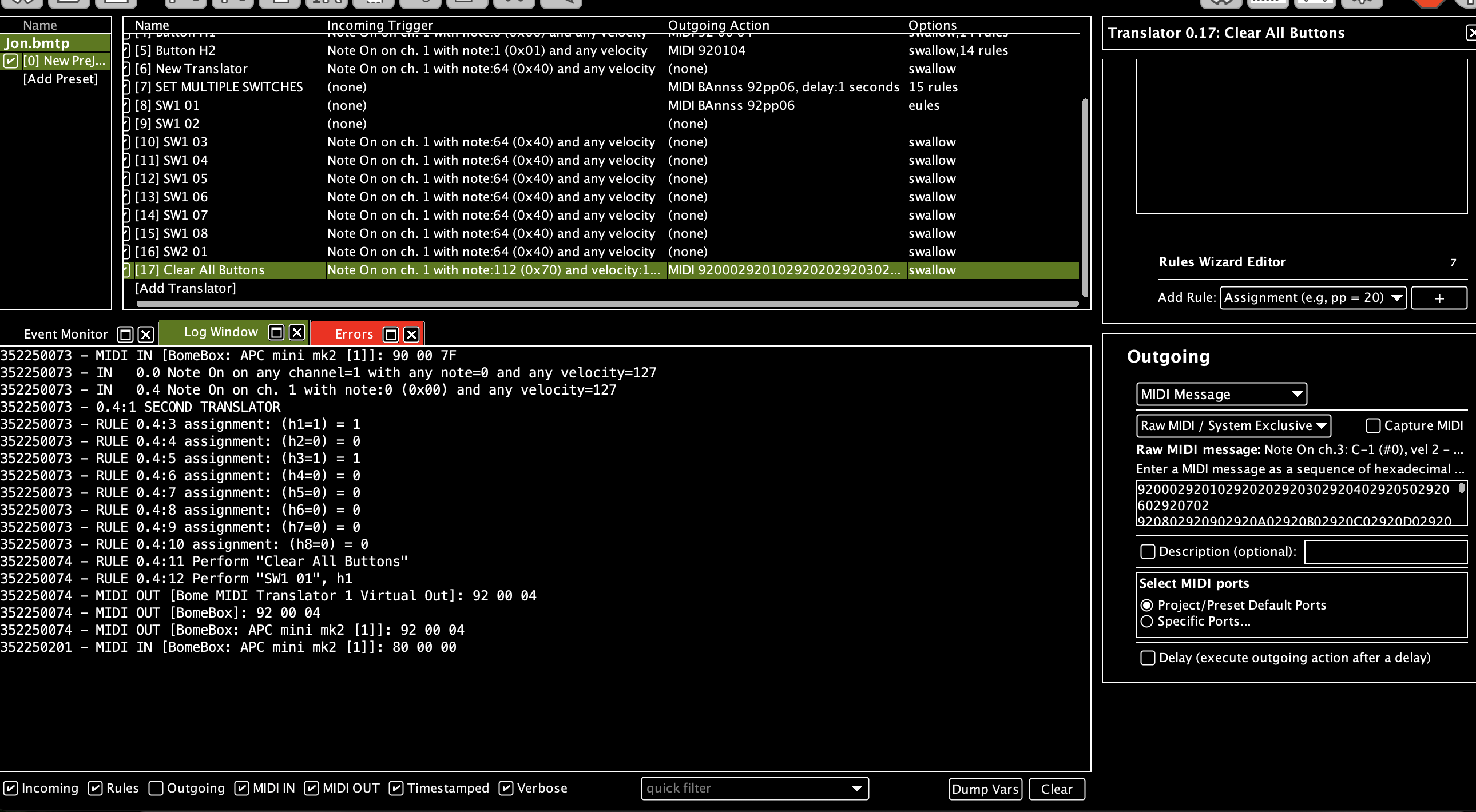
Now if you just want to bypass all loops prior to enabling and disabling another one you could always send a series of raw MIDI messages in one translator, or use a timer to send them with an incoming trigger such as Perform “clearall”.

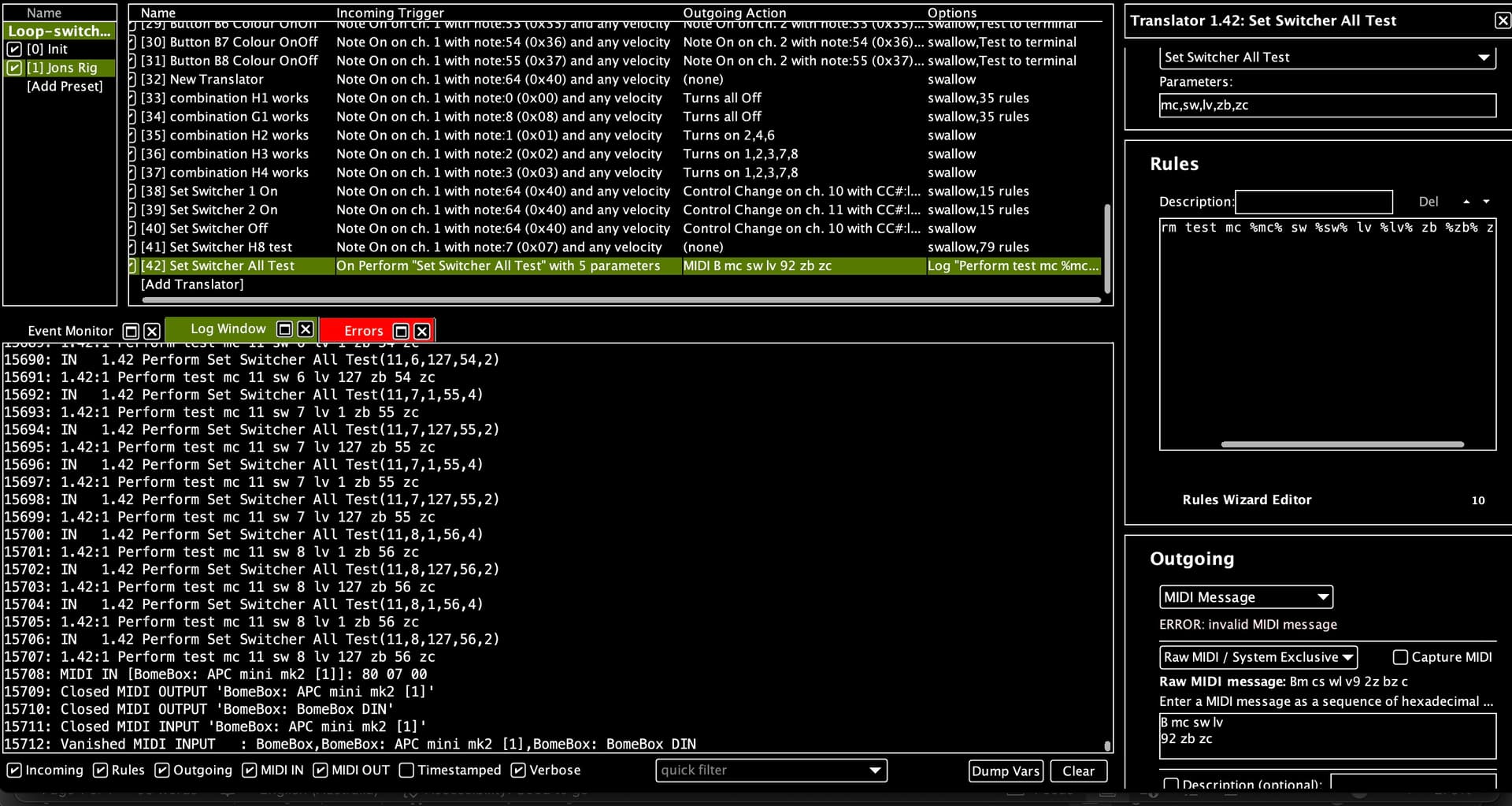
For using perform to turn on and off a loop I would suggest using something like this:

Perform “Loop”, oo,pp, qq
Where 'oo is the MES-8 unit (which can be mapped to a MIDI channel number), pp is the loop number of that unit, and qq is either 1 for on or 0 for off.

You could set up rules in the perform action to determine from there what MIDI message to send. For instance if you want to send to unit 0 the first looper and turn it on your output might be something like b0 00 01 (CC 0 on midi channel 1 value 1).

You could also use another translator to send MIDI feedback to your APC-MINI MK2 using the same perform action and in rules update the bitmap.

If you don’t use a bitmap then you simply put Perform “clearall” in the rules and the set a slight delay with the loop that you want to turn on as MIDI in the outgoing message. That way, every time you send a Perform “clearall”, you know all of the loops are in bypass ( a known state).

Steve Caldwell
Bome Customer Care


Also available for paid consulting services: bome@sniz.biz

Steve, Thanks for the comprehensive answer. That’s most useful. Time to dive in headfirst. I’ll try using ‘perform’ first and see if there are any performance issues.

Regards, Jon

Regards, Jon

1 Like

Steve, I just setup the BomeBox. I’m connecting with WIFI on its own network. I can log into it. However, Bome Midi translator Pro isn’t logging any incoming information from the Akai APC mini Mk2 I have connected via USB. The light on the front of the BomeBox indicates activity when I press a button. For the record, I have a project defined and it’s active, all midi inputs are active. The event monitor shows nothing either. I have a translator defined and active, looking for a note on. It’s listing the devices.

It’s probably something simple. Can you enlighten me?

Thanks Jon

Hi Jon,

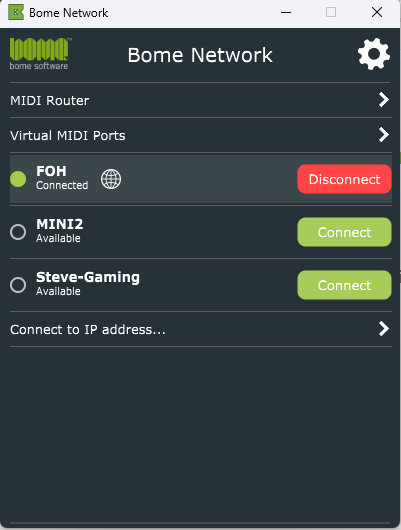
On your computer open Bome Network and then click on your BomeBox . Mine is called ‘FOH’. Don’t click on the globe. Click on the BomeBox name.

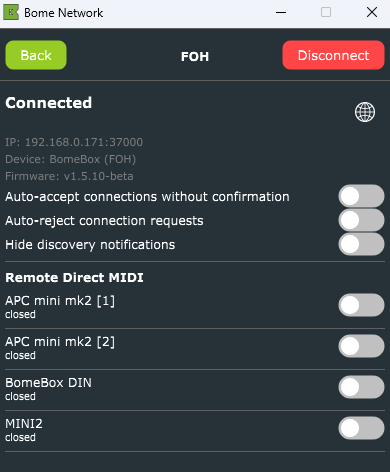
You should then see something similar to this:

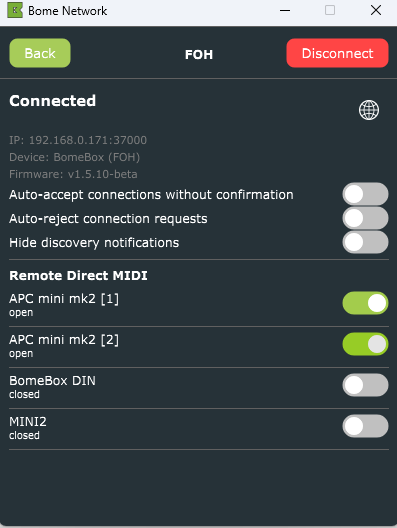
Check the switches for the ports that you want to remotely access as shown below:

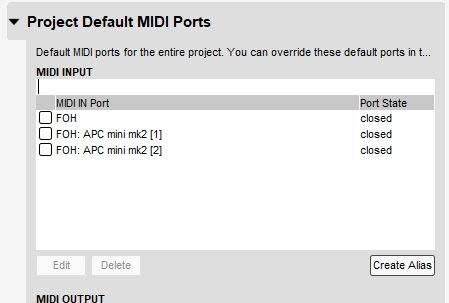
Then the port names will show up similar to this.

You should then be able to access the ports remotely. This is called Remoted Direct MIDI.

Hi Steve, Thanks for your help. I didn’t realise separate software was needed to initiate the device when connect on WIFI.

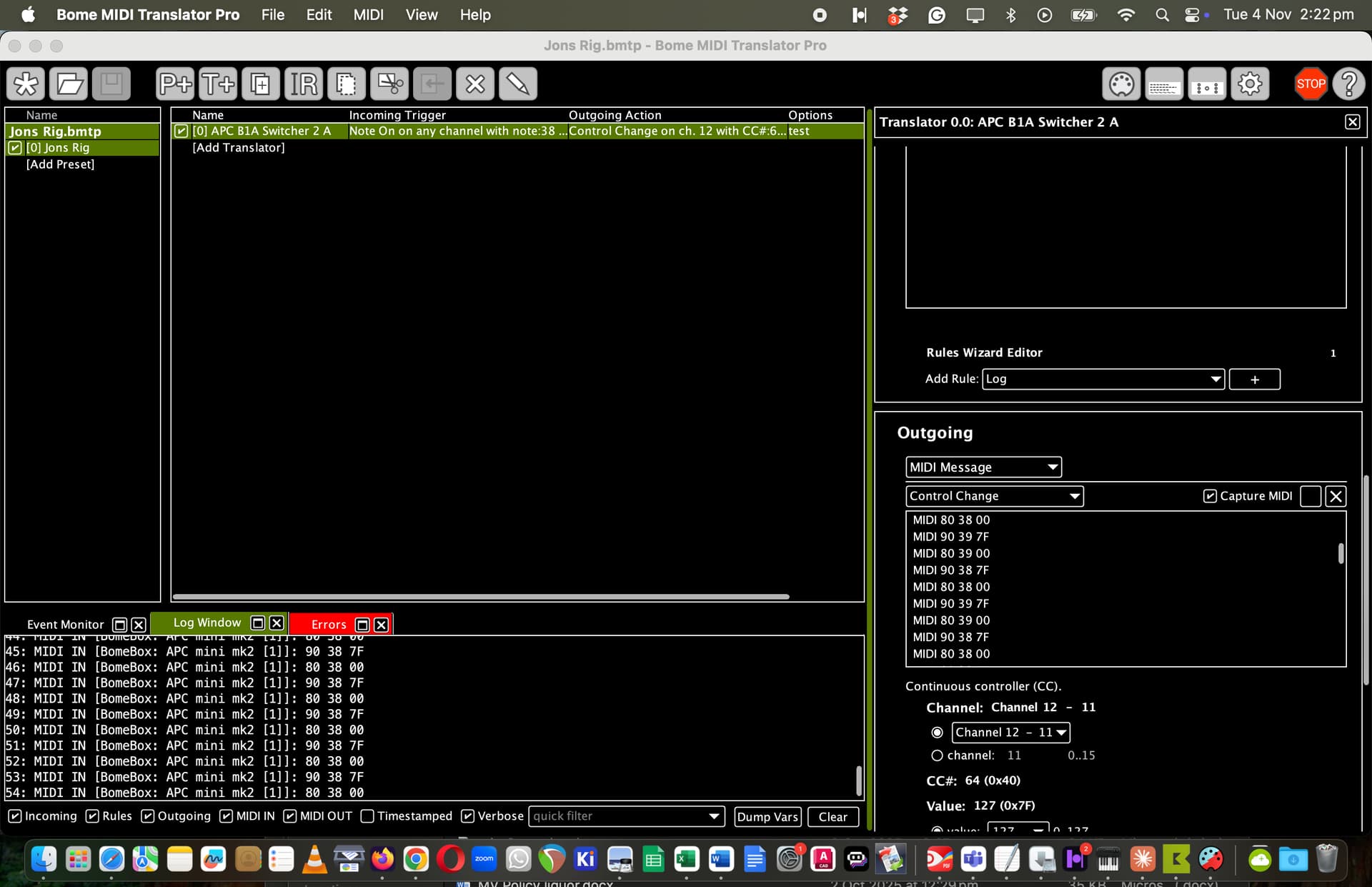
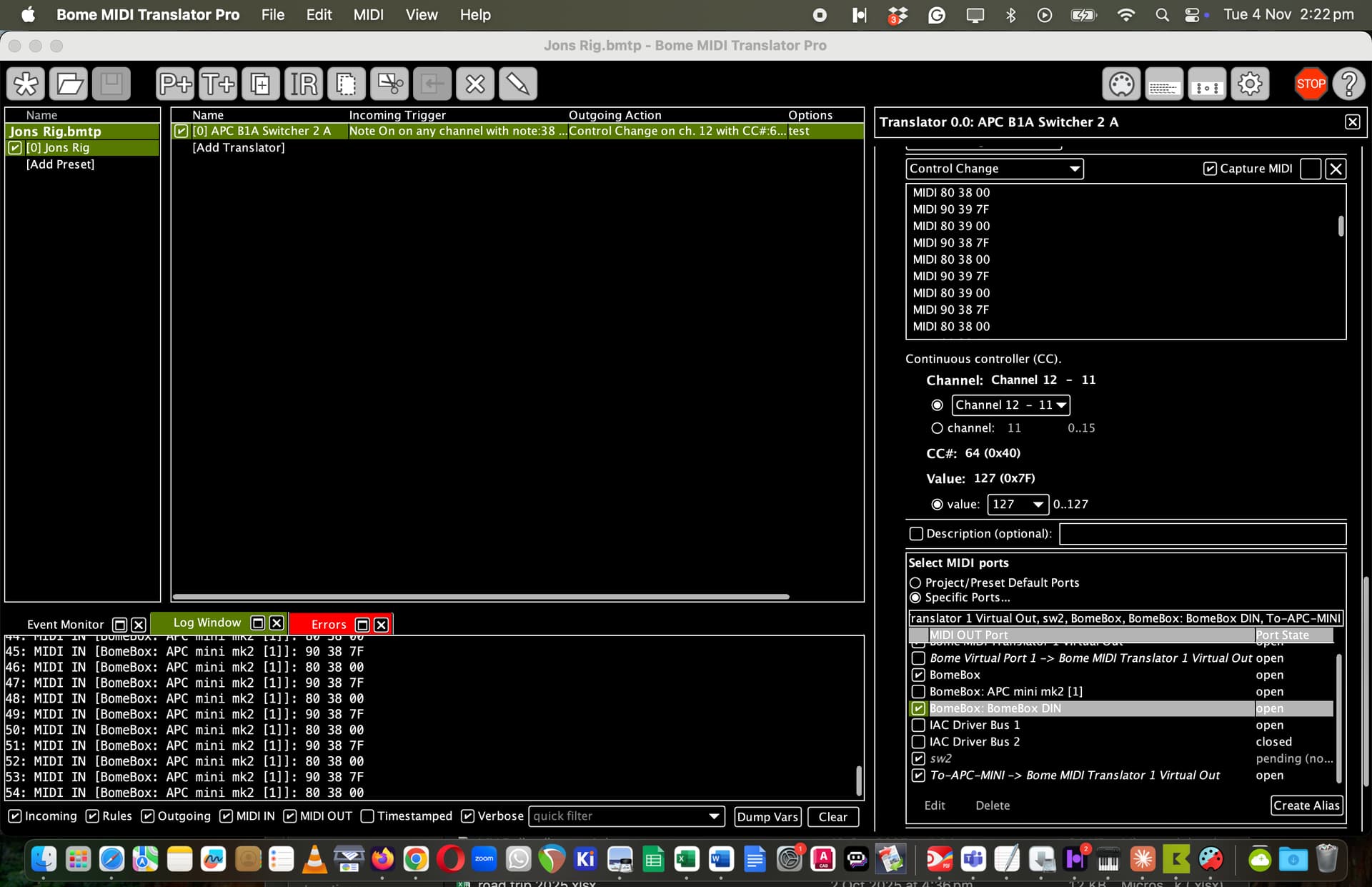
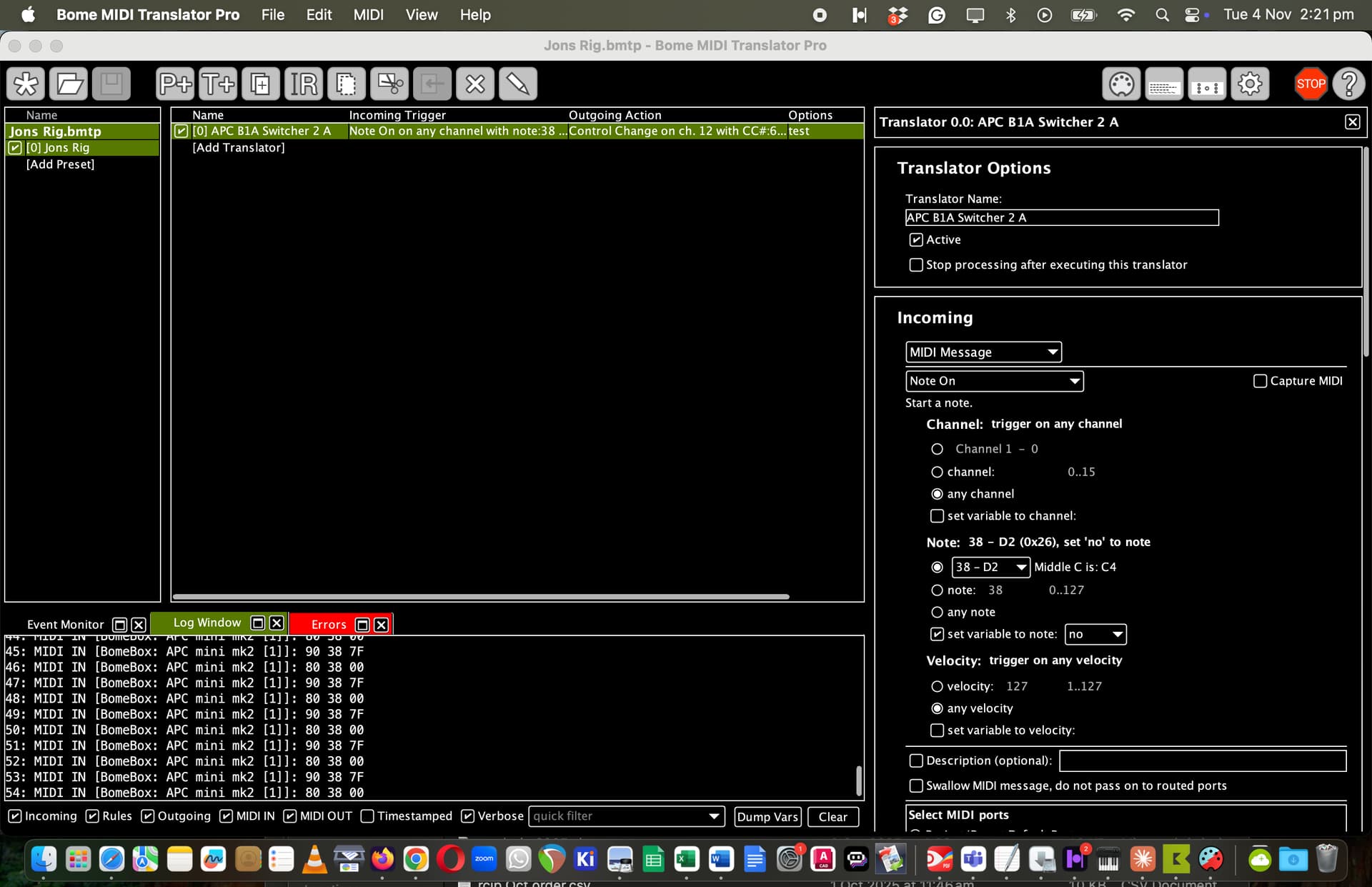
Ive got the device inputting only. Ive set up a simple translator to convert ‘note on’ to CC. However, the input is passing straight through unconverted.

Ive added a log message, and this is also not executing. What are your thoughts?

Regards, Jon

Hi,
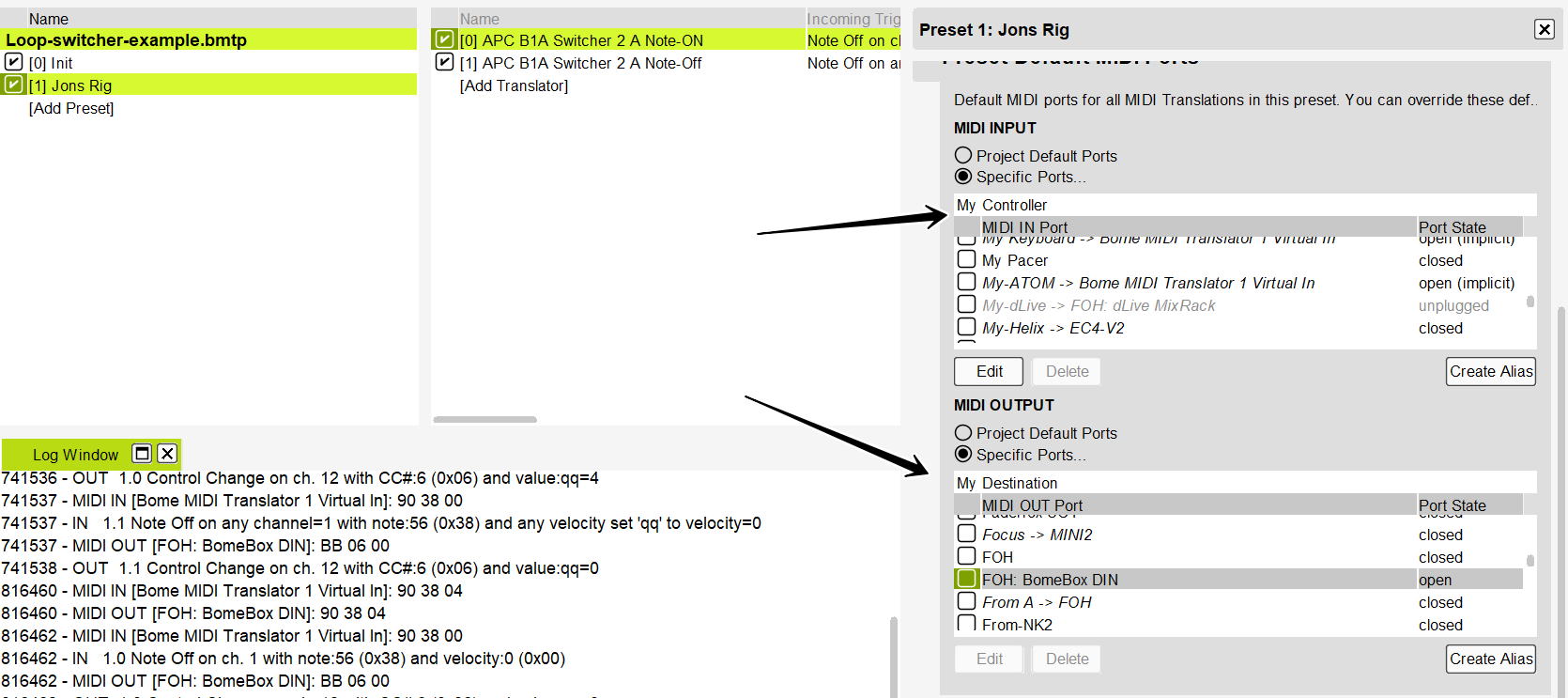
First of all in your log, it show that you are using note 38 hex which is really 56 decimal. MIDI IN and MIDI out always shows the data as hexadecimal.

If you check both MIDI IN and Incoming and see MIDI IN data but no incoming message (which is easier to read) then it means the translator did not trigger.

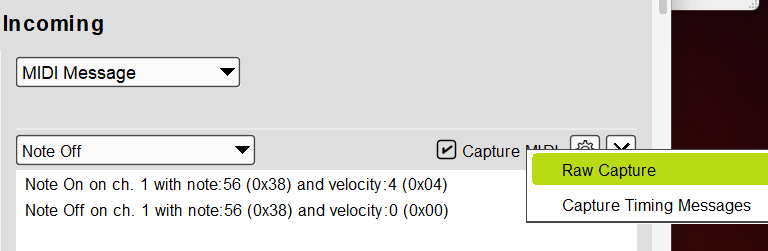
In capture MIDI unselect raw capture and you will see it in a more human readable format. You click on the gear icon and the click to uncheck raw capture as shown in the picture below.

Then you click on the desired incoming message to select it. After selecting it you edit the incoming message as you like (ie any channel any velocity).

In this case I created a note-off translator as well so that if the velocity is 0 the second translator will pass a CC value of 0.

In hexadecimal format if the first number starts with a 9 is a note. If it has a velocity of zero or starts with an 8 then it is a note off.

The second digit of the first number is the MIDI CH where 0=MIDI CH1 and F is MIDI CH 16

The second number is the note number in hex.

The third number is the velocity in hex

90 24 12 - Is note-on note 36 velocity 18
90 24 00 - Is note-off note 36 velocity 0
80 24 12 - Is note-off note 36 velocity 18

For CC if the the first number starts with a B , it is a control change message. Again the second digit of the first number is the midi channel. The second number is the cc# in hex and the third number is the CC value in hex

B0 10 7f - CC on MIDI CH 1 CC#16 value 127

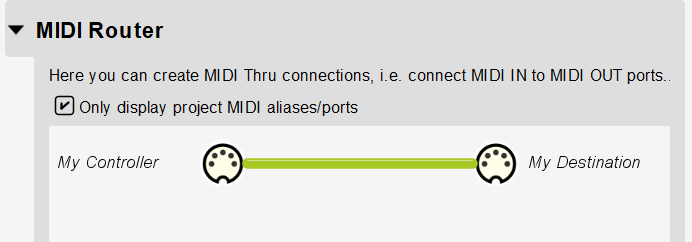
For MIDI message that you want to go straight through that are not “caught” by a translator, add a MIDI path.

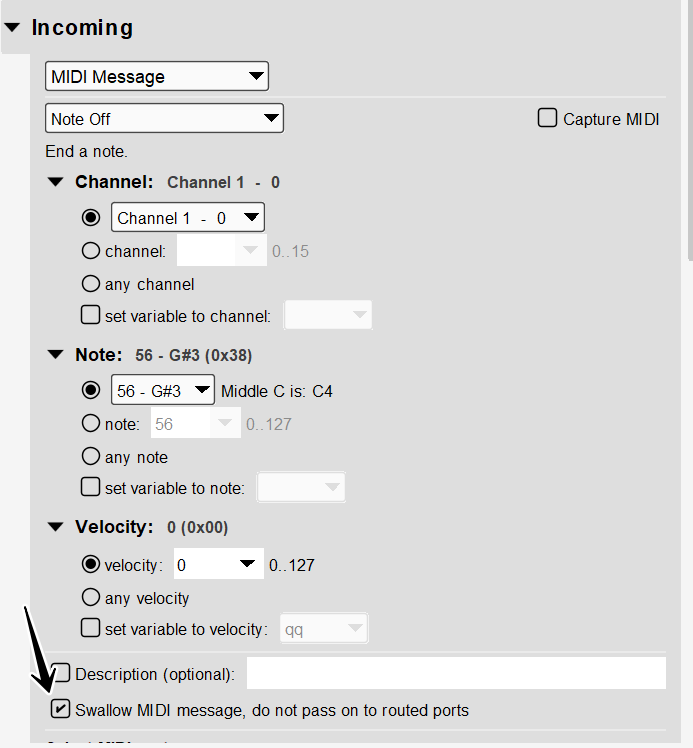
Make sure you check ‘swallow’ on any transator that you don’t also want to go through the MIDI thru path.

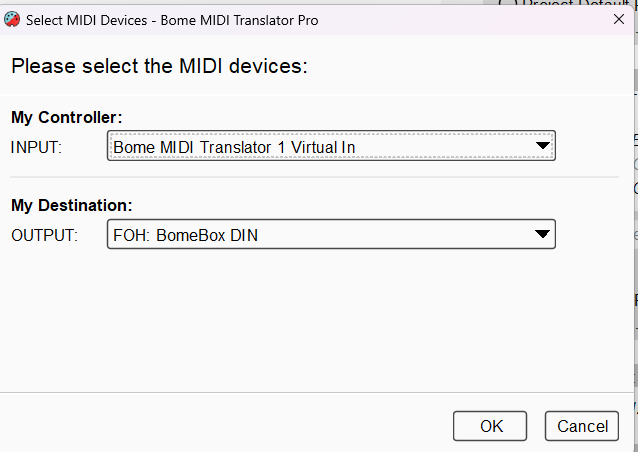
I set up my aliases follows:

You can learn more about aliases from this tutorial.

I set up my desired device ports at the preset level.

Loop-switcher-example.bmtp (2.0 KB)

Steve Caldwell
Bome Customer Care


Also available for paid consulting services: bome@sniz.biz