Well, the main thing you need to do is ensure the output port you are using for your SoftStep is matched to the input port in Bome MIDI Translator Pro.
Check Bome MIDI Translator Pro input ports and select the correct one that SoftStep is sending to.

If you also want MIDI to go through to Ableton Live, you would setup an output port in Bome MIDI Translator Pro (MT Pro). This would be a virtual MIDI port. Then have Ableton Live set up to receive MIDI from that port instead of directly from your SoftStep. You could either setup translators in MT Pro to convert MIDI messages or set up a MIDI thru path so that any MIDI not handled by a translator is passed directly through to the designated output port.
In the example of the update project file below. I have set up a MIDI thru path between ‘My Controller’ and ‘Application’. These are both aliases that I have set up as shown here.
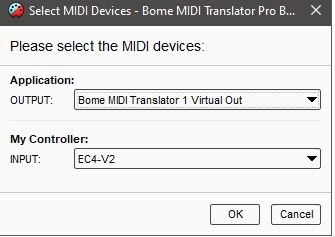
You can learn more about aliases from this tutorial.
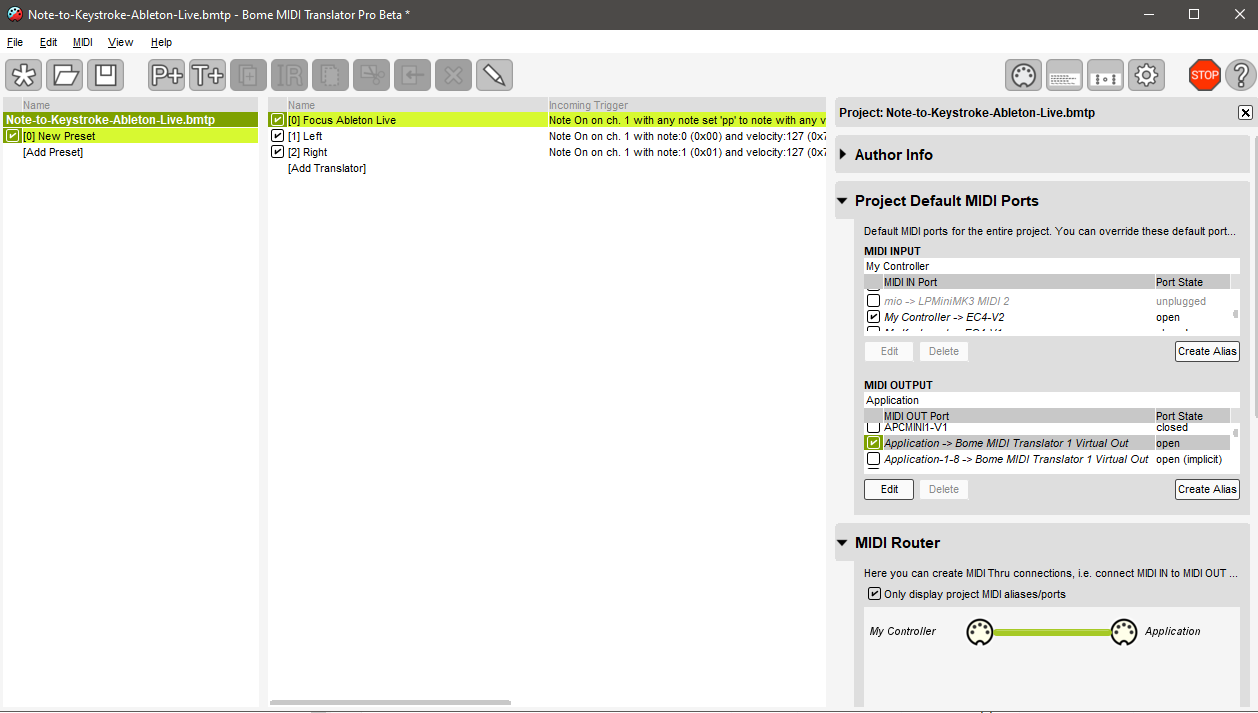
In Ableton Live, the Port named ‘Bome MIDI Translator 1 Virtual Out’ is simply called ‘BMT 1’. There is an option in MT Pro to use either long names or short names. The default is short names (like ‘BMT 1’) which I prefer.

Now you can route everything through Bome MIDI Translator Pro to control both MIDI and keystrokes.
There are a lot of tutorials and they can be found here.
If you use the help menu item in Bome MIDI Translator Pro or press F1, it will open the Bome MIDI Translator Pro User Guide as a PDF file).
Here is the updated project file with the MIDI thru path set as I described above.
Note-to-Keystroke-Ableton-Live.bmtp (1.6 KB)
Steve Caldwell
Bome Customer Care
Also available for paid consulting services: bome@sniz.biz