I have been using an iPad Pro connected to a Surface Pro 9 via Ethernet and Bome Network on both devices all week. Connections have been quick as a rule. Today I turned everything on, and although Bome network had the white tick showing connection, the iPad did not change anything using midi on the PC. I did everything I knew but the computer did not change programs or any other midi functions. In the end after 1/2 hour trying, I turned both devices off and unplugged every cord. Success - midi messages began to get through and everything was happening again.
Is this just a Windows thing we have to put up with? Or what should the protocol be for both devices to talk allowing midi to arrive at the pc effecting midi events?
Could this possibly be a Bome Network issue? Even when the white tick was present, why did the midi events not work? If it could be a Bome Network issue, is there a possible update due that might help with this problem? Cheers, and thanks for any help/advice!
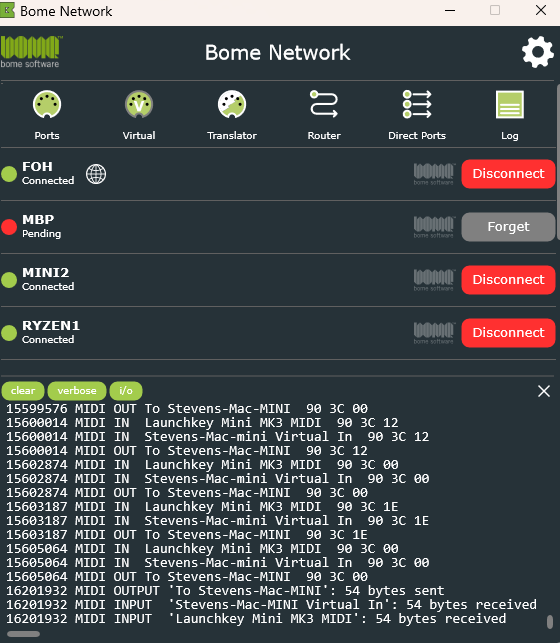
When you saw the white tick, did you also open up the Bome Network Pro tool to see if the connection showed there? If the systems are connected correctly, I see no reason why the MIDI would not go through unless one of the appications on either the iPad Pro or the Surface Pro was not sending or accepting MIDI.
I would suggest if it happens again, that you open the logging view within the Surface Pro Bome Network tool to see if you have MIDI activity there. If not then go backwards to the iPad and view the log there in the Bome Network tool to see if the application is sending MIDI out to Bome Network. If not, go back to your application settings for OnSong.
If you see input coming in the Log in Bome Network Pro on you Surface Pro. Check to see if Gig Performer is getting the MIDI information in and that the ports are open. The other possibility is that you may have had another application holding your desired MIDI port open on your SurfacePro.
If it happens again, please send the Bome Network Pro log file.
I had a gig tonight. I was set up ready to play and began testing connections with 20 minutes to start time. Nothing. No white tick, nothing. I rebooted iPad and PC several times, unplugged and replugged several times and still no connection. So I explained to the proprietor that the computer was down, then packed up and went home. I was a gutted broken man, very embarrassed and angry. I arrived home 30 minuted later and set up again. I was checking connections and found that the usb c Ethernet adapter was missing indicator lights. I found a spare and bingo, I had blinking connection lights. The faulty adapter was unbranded. I’ve ordered a new $100 replacement. Problem solved. Cheers Steve.
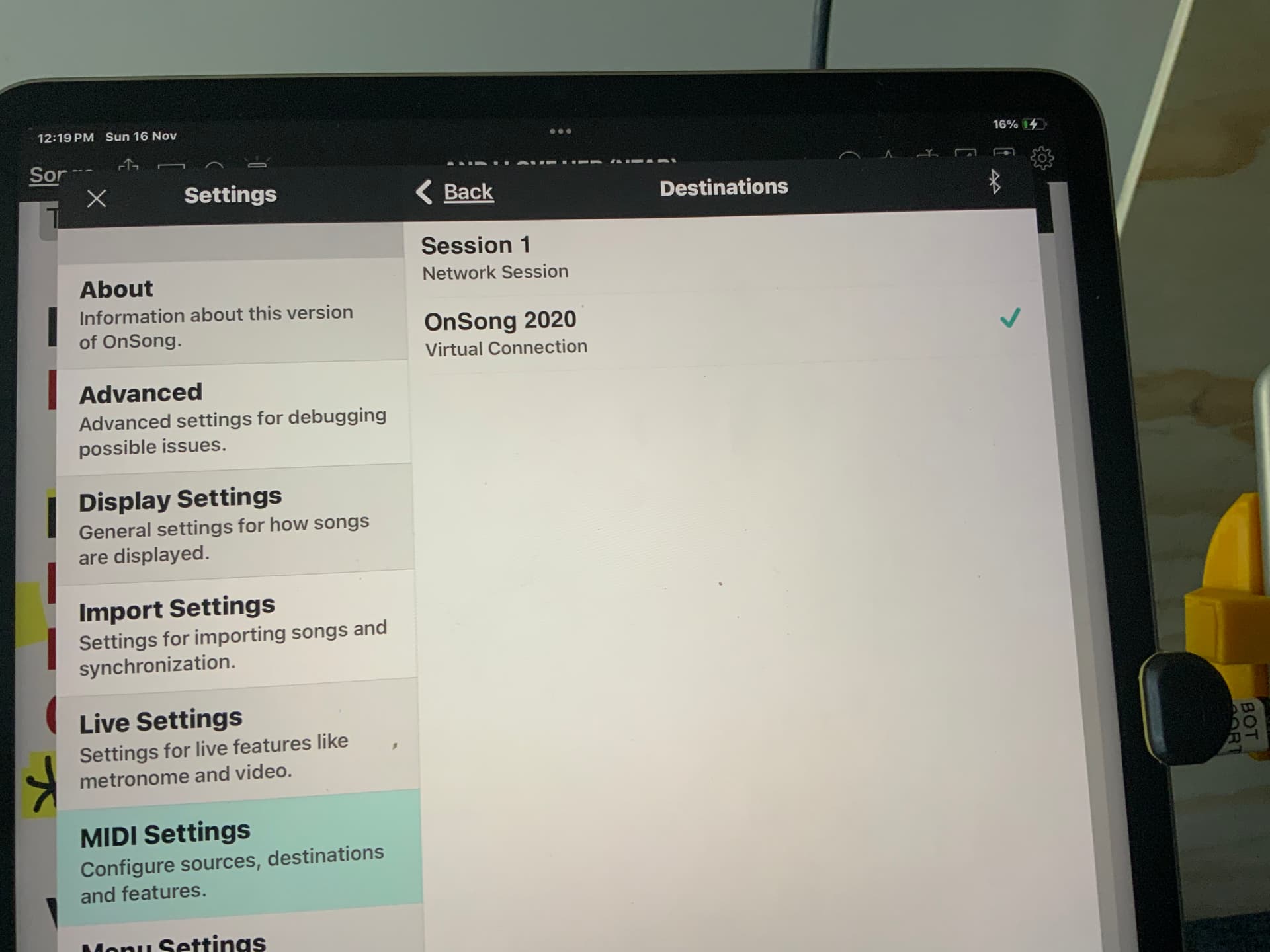
Unfortunately, this morning things are not connecting despite the replacement Ethernet adapter. Below in the ss under destinations, the iPad running OnSong is not showing Gig Performer on the PC as a destination. This is despite the white tick on the icon on the task bar. This should be automatic surely! How do I get the iPad to offer Gig Performer as a connection?. This is exactly the issue I had at the gig yesterday even with the replacement Ethernet adapter.
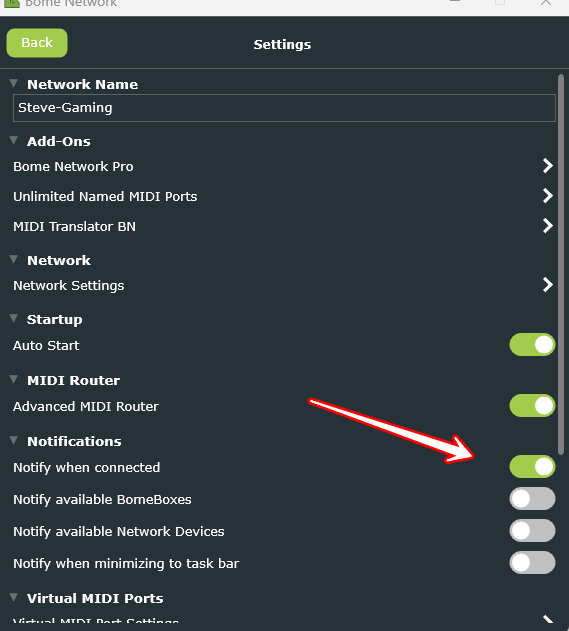
Yes I have. Seems to connect better if I don’t try to rush things. The only other issue I have is getting Bome Network to start with Windows. I have the option turned on but it isn’t consistent regararding actually happening. I deleted the short cut and copied the main icon. Will see if that works better. Thanks for all the help.
This should work, maybe it is opening, but in the menu tray.
When you start up the computer, if it was minimized it should still start but in the menu tray. If you shut the system down while the application window was open, then when you start up again, it will also open.
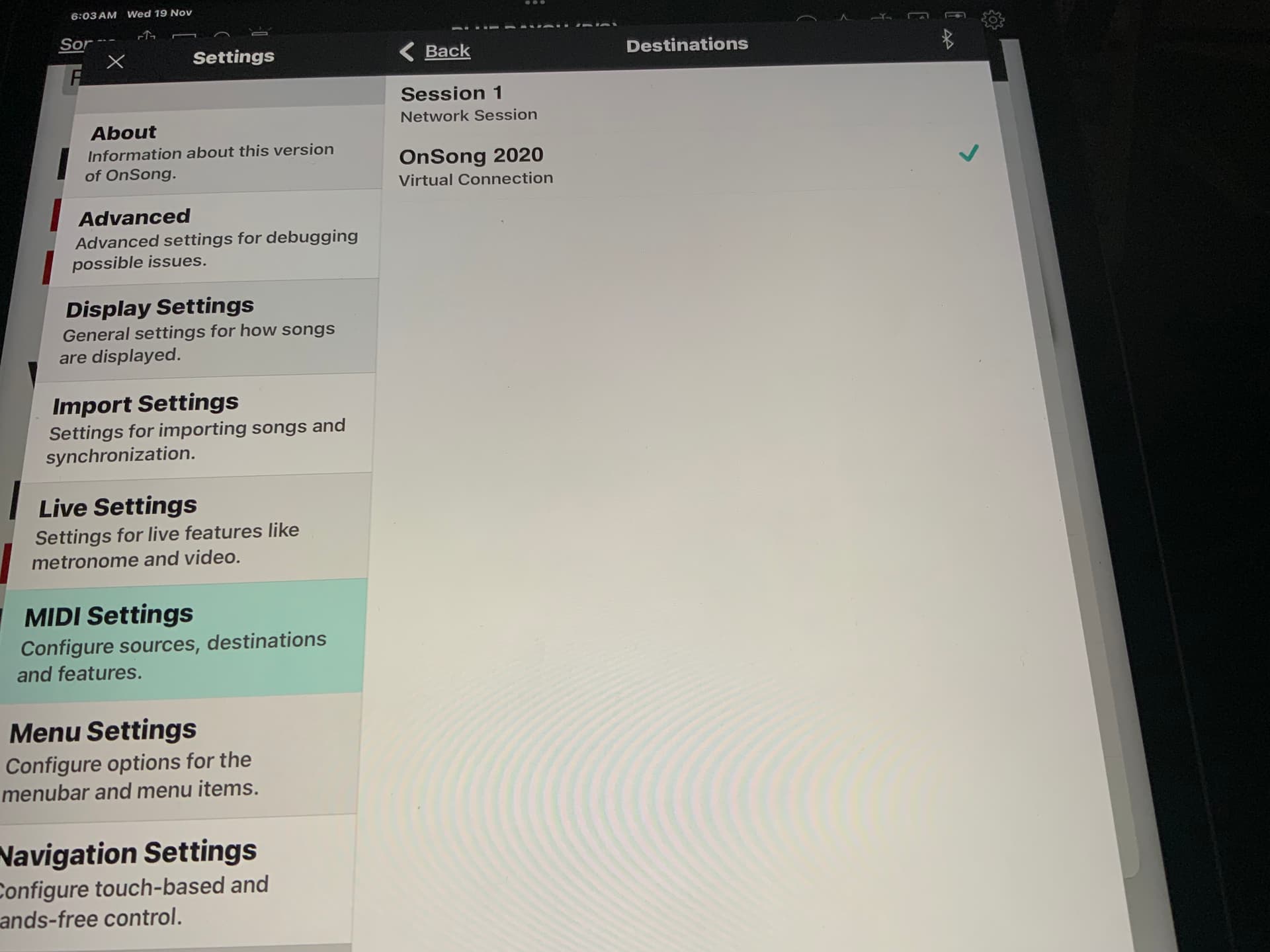
Still no go here. I spent an hour yesterday before I got connection between the iPad and the Surface Pro. And when it did finally connect, I have no idea what I did or how it happened. This is what is missing each time:
A connection is missing on the iPad. There should be one saying “Surface Pro 9.” What havent I done correctly? And what causes the connection to just appear. I’ve unplugged and replugged. Turned everything on and off several times. I cannot get the connection to appear on the iPad.
Yes, I guess we will need to go through all of your setting.
In your case, you should have both your iPad and Surface Pro set for a fixed IP address.
I suggest 192.168.0.1 for your Surface Pro and 192.168.0.1 for your iPad. Netmask 255.255.255.0. Gateway 192.168.0.1
Then make sure in Bome Network on your iPad, you set the name in settings to the name you last assigned to your Surface Pro, otherwise iOS will give it it’s own name like maybe ‘localhost’.
I’m not sure why Gig Performer is mis-behaving. We can look through that when we have our call later today.