I was wondering if there has been any progress on the issue in the title,
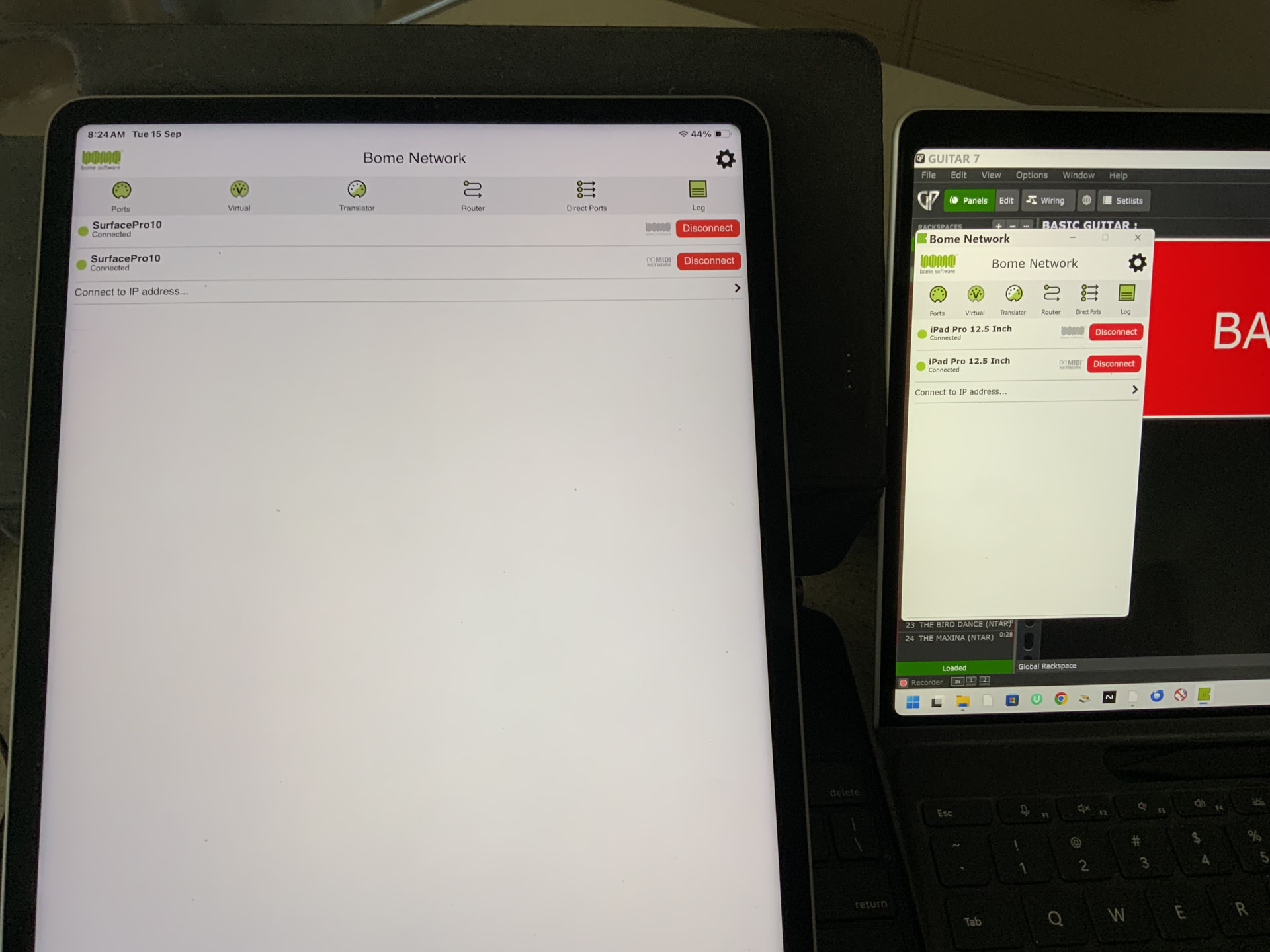
This mainly means that the remote device is reachable via different protocols.
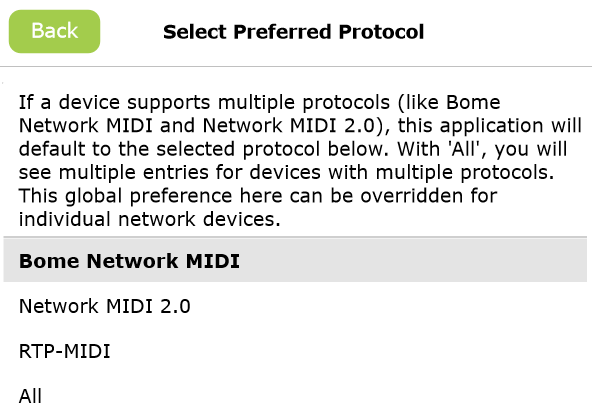
If you do not want to see multiple entries for the same device, Bome Network allows you to set the preferred protocol, which is, by default, the Bome Network MIDI protocol.
So it seems that you’ve changed the preferred protocol to ALL, in which case you see all protocols separately.
Go to Settings → Network Settings → Preferred Protocol and select Bome Network MIDI:
Note that you can also override the preferred protocol in the details page of the device:
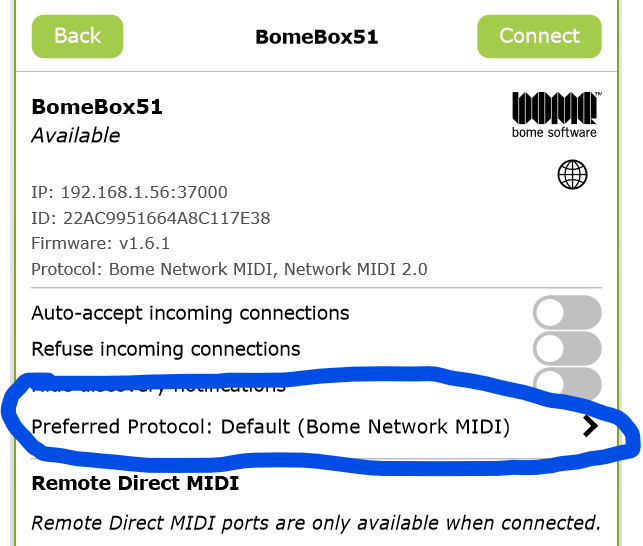
Make sure to select ‘Default’ here.
Steve Caldwell
Bome Customer Care
Also available for paid consulting services: bome@sniz.biz
Alan, what version of Bome Network Pro are you running on you Surface Pro?
Hi Steve. 1.7 on Surface Pro and iPad Pro.
I did have the protocol already set to Bome network. I see now that a black on yellow warning appears saying that Midi network 2 is not discoverable. Can this be disabled?
Hi again,
I see that if I turn off midi 2, I get a black on yellow warning about it not being turned on. Can that be disabled?
OK I had to fix it by doing this.
- On your iPad network setting, set the MIDI 2.0 switch discoverable off as shown here.
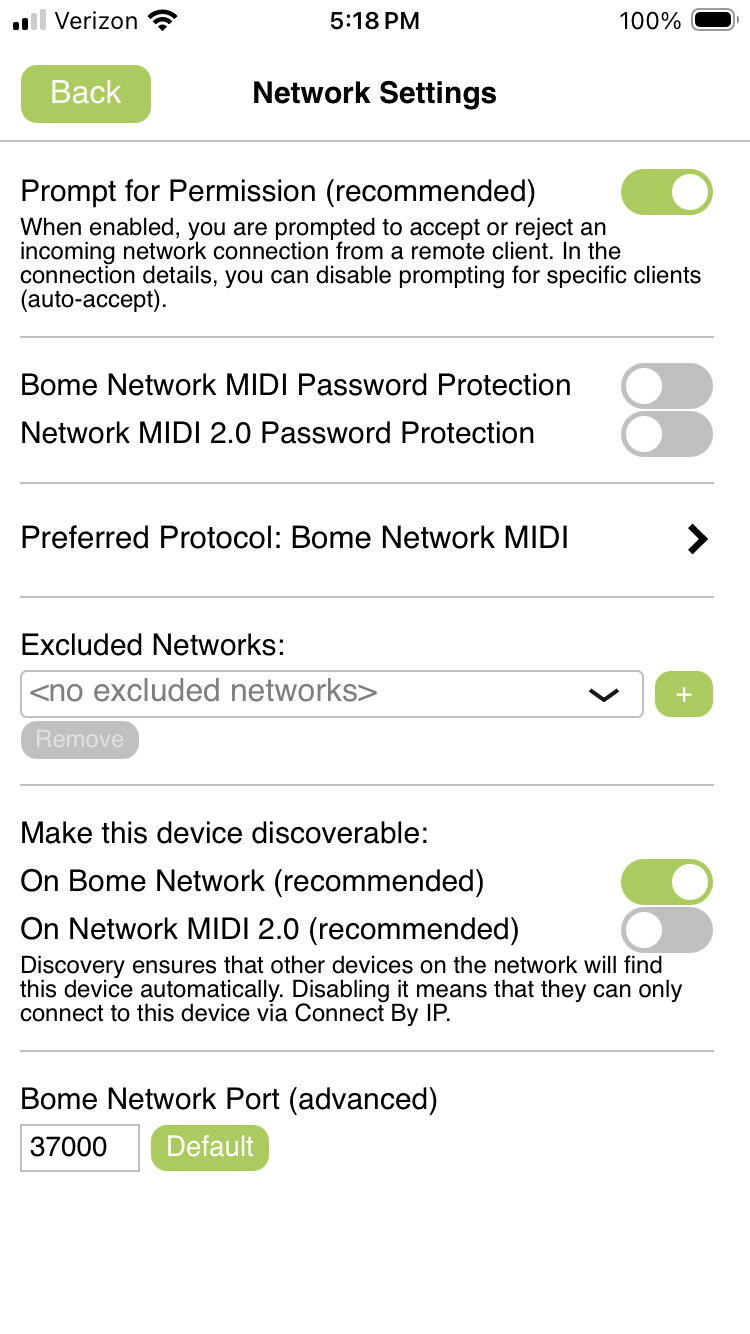
- On your Surface Pro, set the preferred network to Bome Network MIDI as shown here:
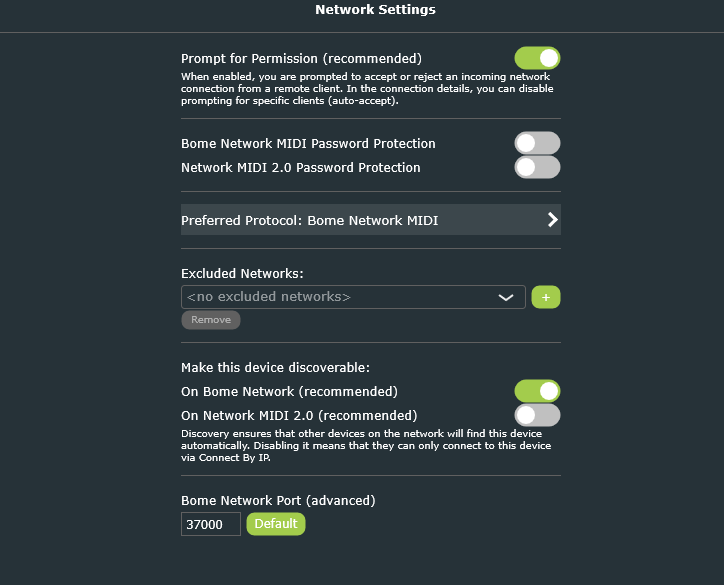
Now for me I had to restart Bome Network on my PC. For you, do this on your Surface Pro.
Then it should work and only display the Bome Network Port.
The next released version should not require you to restart Bome Network for this to take effect.
Steve Caldwell
Bome Customer Care
Also available for paid consulting services: bome@sniz.biz
Hi Alan,
the underlying issue is that you are connected to the same remote device via two different protocols at the same time. That’s why you see both connections, because you have two connections. Note the protocol icon next to the Disconnect buttons.
It’s not a good idea to connect to the same remote device via 2 different protocols at once. You will probably see duplicated MIDI messages.
I recommend to go back to using the default settings:
- Disconnect both connections
- Enable Network MIDI 2.0 discovery on all devices (even though you don’t need it, but it will hide the warning on the main screen)
- Make sure that you’re using the default settings for Preferred Protocol:
- (Bome Network MIDI in Network Settings,
- Default in device details, see Steve’s first reply above)
- In the main screen, you should only see one device entry with ‘Bome Network MIDI’ protocol. Use it to connect.
This cannot be disabled with 1.7.0 but we will look into it for later releases. Maybe try what Florian recommended and I will try as well, however for some reason, I did not get success. Maybe I missed a step.
Not sure how, but I vaguely followed your instructions and have only one instance in both devises now. Thanks for the help
Well, talk about a disastrous couple of weeks. I’ve had three public performance failures in a row. Both my iPad and my Surface Pro have indicated that they are connected, with the SP even showing a white tick in the icon in the notification area. The midi sent from the iPad to the Surface Pro has been arriving according to the midi monitor in the software, but not a trace of action has happened at the SP end. My performances rely on midi commands sent from the iPad, and if midi does not arrive, then the system remains dead, Fortunately, I have had a piano available at all three venues so was still able to perform.
This morning, I decided to revert back to V1.6 on the Surface Pro. Immediately, midi was flowing again and the two instances of Bome NW at both ends reverted back to one. So, I am back in action with a working system. I will stick with V1.6 in the meantime. Having so many performance failures is bad for my ego, and I am still looking forward to where I can arrive at a gig, set and turn on and know that everything will work as it should. Cheers, and sorry for the bad news.
Hi, this doesn’t make sense and 1.7 should work just fine. Maybe when you are ready and not at an event, you can go back to 1.7 and test again checking all of the boxes on the Bome Network Log window and then after closing Bome Network, send up the log file. It would be interesting to see the actual MIDI messages and routing as it comes into Bome Network on the Surface Pro,
Also a screen shot of your MIDI routing with both 1.6 and 1.7.
So are you checking it within the Bome Network Log or some other monitoring software? If Bome Network Log are you also seeing it in Gig Performer Global MIDI IN?
Edit: Also is there a different on how things are setup at home verses the performances?
Steve Caldwell
Bome Customer Care
Also available for paid consulting services: bome@sniz.biz
How do I send a log file please?
BomeNet.log (511.2 KB)
BomeNet1.log (512.0 KB)
Here is a post of where the log file is kept.
You can either upload and post it here or send it via our contact form.
Steve Caldwell
Bome Customer Care
Also available for paid consulting services: bome@sniz.biz
Bome NW 1.7 attached. Will await your reply for possble incorrect settings.
BomeNet.log (225.5 KB)
BomeNet1.log (512.0 KB)
Bome NW 1.6
Could you also post your Bomenet setting file?
See here for instructions on how to find it.
Hi Alan, you didn’t answer the above questions. Last time when we checked you were using both Bome Network connection and MIDI 2.0 connection. In your case you should only connect using the Bome Network connection. Your log indicated that the MIDI 2.0 connection was still active and interfering with the Bome Network connection.
Steve
Sorry for the tardy response. I just forgot. I set up my performance setup and it responded exactly the same i.e. connected great with 1.6 but totally lacking with 1.7 (no connection.)
A big Oh about the MIDI 2 connection. I did restore drive image I think the day after the emails and it probably had the original midi connection. I will check now and respond soon.